Contents · Allowing file edits and programs
Allowing file edits and programs
Decide what an agent asks about, and give your OK.
Approval mode
Pick it in the New agent window. Each new agent starts with the approval mode set in your Claude settings, or Ask every time if none is set or it's set to skip all permissions. After that, change it in Agent info (⌘⇧I). If you pick one while the agent is working, it switches when the current task ends.
- Ask every time — Asks before each file edit and program.
- Allow edits — Doesn't ask before editing files.
- Auto — Claude decides and goes ahead without asking.
- Plan only — Doesn't change files.
Giving your OK
When an agent asks, it shows Waiting for you in the list and you get a notification.
- Open the agent from the notification or the list.
- Answer in the Claude Code prompt at the bottom of the terminal.
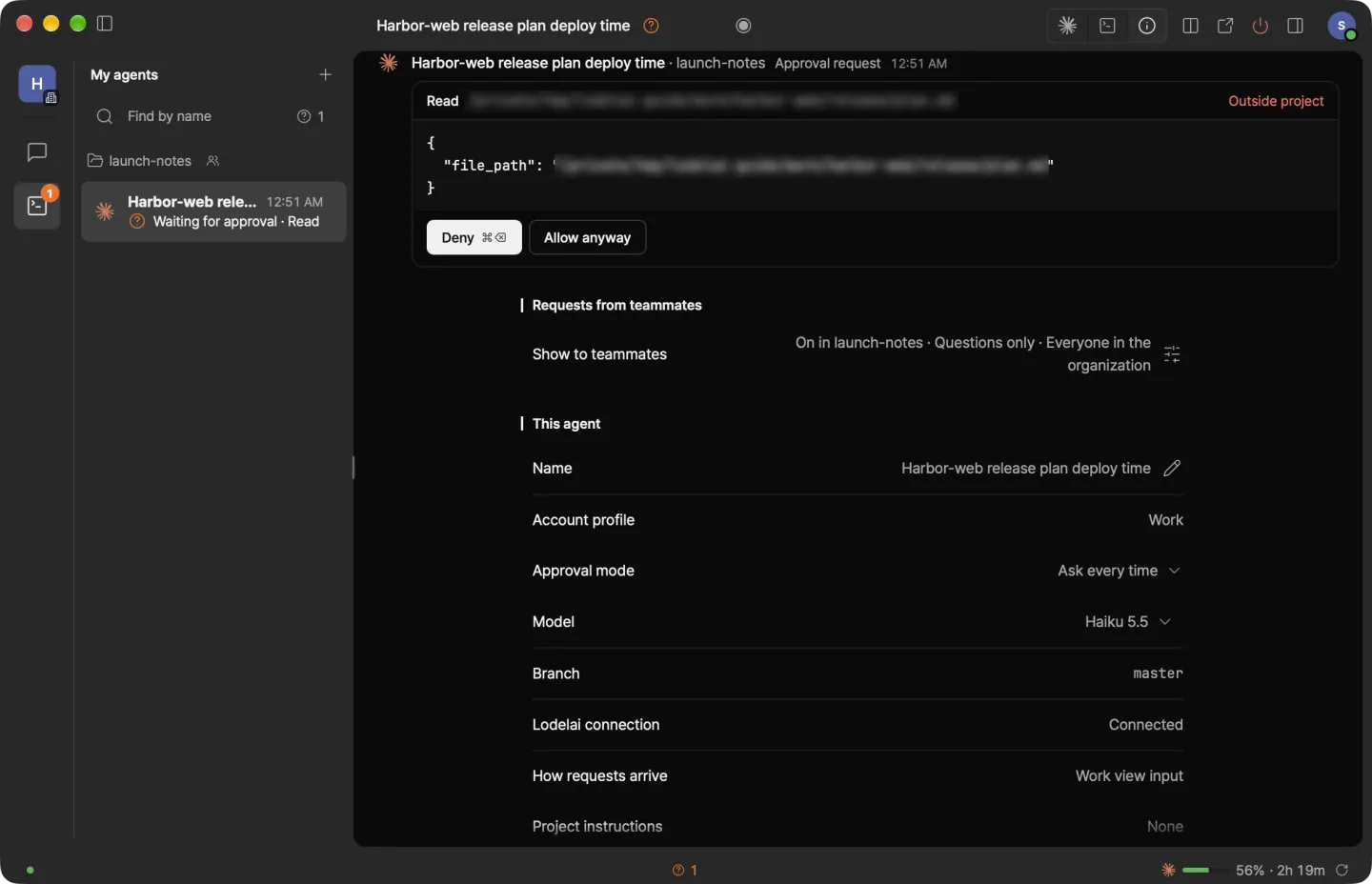
For riskier requests, like editing a file outside the folder, a card also appears over the terminal. Whichever you answer first decides. If you're looking at Agent info (⌘⇧I), click Allow or Deny in the card at the top.
Notifications have no Allow button, so you decide after seeing what it wants to do. Several requests come as one notification, such as 3 approval requests.
While handling a teammate's request
- If the agent asks, Waiting for approval in the work view appears in your chat with that teammate. Click Approve in work view to answer.
- Allow edits and Auto agents still ask before editing files.
- A request sent as a question can't edit files.
Turn on Use auto for teammate requests too in Settings › General (off by default), and edits inside the project won't need your OK. It still asks before running unfamiliar programs and reading the whole folder. Turn it on only with a team you trust.
Next: Scheduled prompts