Contents · Open an agent
Guide
Open an agent
Open a new agent or resume a conversation.
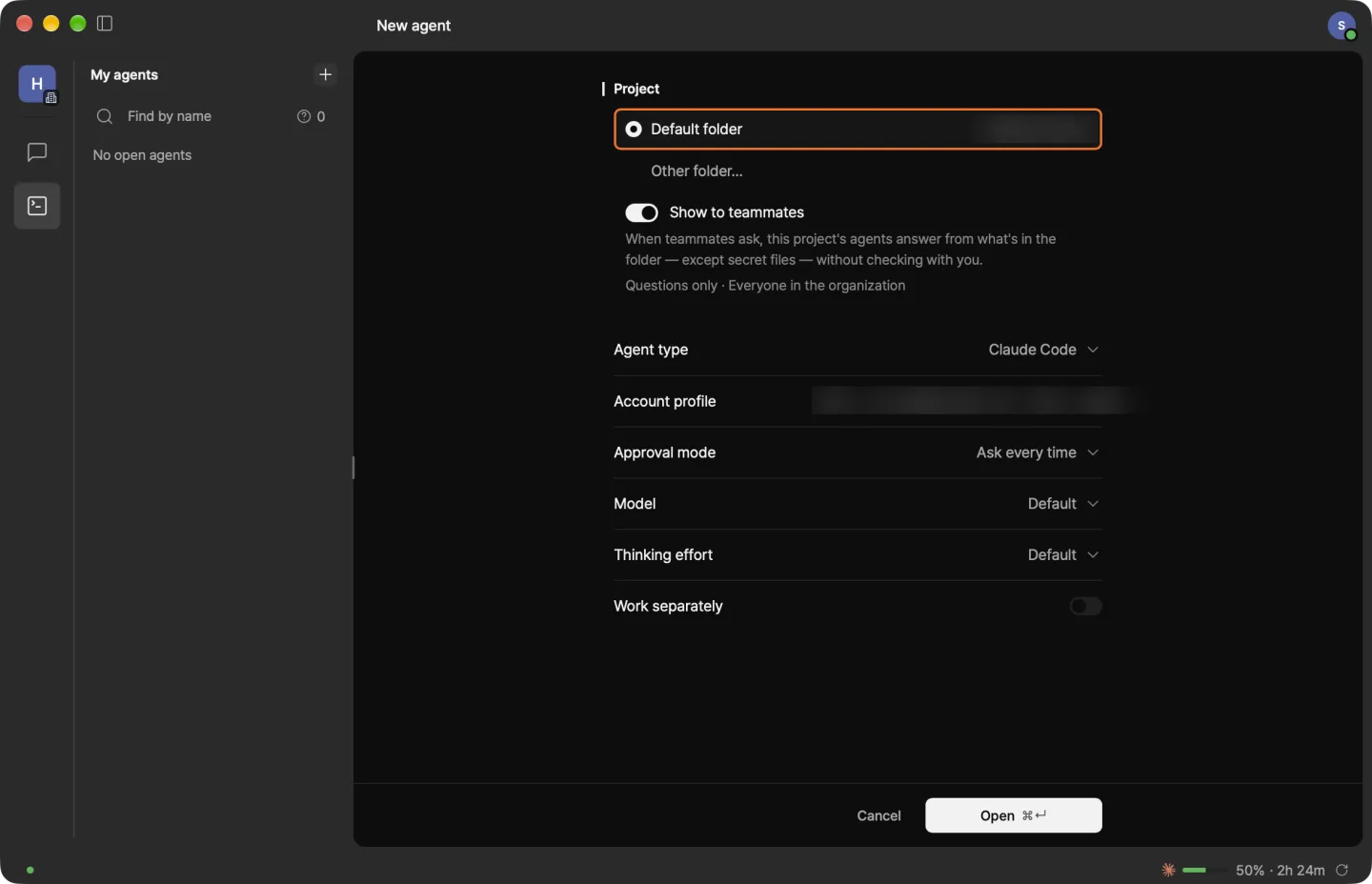
New agent
- Press ⌘N to open the New agent window.
- Under Project, pick the folder the agent works in. For a new folder, also set Show to teammates (Show a project to teammates).
- Change the account profile, approval mode, or model if needed.
- Click Open (↵).
Agents you open in lodelai run with the same environment as your terminal, including values from your shell profile (like .zshrc).
Your agents appear in the My agents list in the rail on the left, grouped by project.
Open from Terminal
- In the menu bar, choose lodelai › Install ‘lodelai’ Terminal Command….
- In Terminal, type
lodelaito open the New agent window for the folder you're in. For another folder, typelodelai <folder>. - Check the settings and click Open (↵).
- If
~/.local/bin/lodelaialready exists, lodelai leaves it as is. - If a note asks you to add
~/.local/binto your PATH, click the copy button in the note, paste the line at the end of~/.zshrc, and open a new Terminal window.
Resume a conversation
- Opened in lodelai — Pick a project in the ⌘N window to see past conversations.
- Opened outside lodelai — It shows in the list, but teammates can't see it. Click the crossed-out eye at the end of the row, then Resume in lodelai (or right-click it). If it's working, it opens when it's done. To keep using that terminal, copy
lodelai claudefrom the same box and run it there.
Reading status
One icon on each row shows its status. Hover to see it in words.
- Working — The icon spins.
- Waiting for you — It needs your answer or OK. Shown with color and a count.
- Off — Dimmed. Select it and click Reopen.
Change the model or compact the conversation
Select the agent and press ⌘⇧I to open Agent info.
- Model — Click it and pick another model.
- Compact conversation — Click the button at the end of the usage bar.
While the agent is working, both are dimmed; use them when it's done. This works only for agents opened in lodelai.
Use another Claude account
- In Settings › Account profiles, click + in the Another account row.
- Claude's sign-in page opens in your browser. Sign in, and a new account profile appears.
- Pick it under Account profile in the New agent window.
- If the browser didn't open, click ⋯ › Open sign-in page in that row. If the browser shows a code, enter it in the field that appears and click Send.